Lab Goal
We’ll use both InDesign and Illustrator here. We will work through some tools to make Creative Cloud programs talk to each other, and we’ll see what we can do to streamline our design process for the future.
This lab is a solo exercise, but you will be working in your groups to make your ebook draft for next week. Group members can turn in the same product, but I want everyone working on their own InDesign files for the practice.
Lab Materials
You will need your character model produced in the last lab. You will also need any book text you may have produced before this point (if you have none, you can use this sample text).
Given some of the technical trouble we ran into with Illustrator last week, I’ll also add three additional resources here:
- Puppets available at Adobe.com, made specifically for Character Animator (our long-term goal in this process): https://pages.adobe.com/character/en/puppets.html
- The Puppets made by OkaySamurai (Dave Werner), available at his portfolio site: https://okaysamurai.com/puppets/ . Please don’t use them for commercial purposes. As far as I can tell, the ONLY puppet that can be downloaded directly as an Illustrator file is Wilk (the green dragon).
- For more information about using puppets, see this quick YouTube video. I’ll post a longer one later this term. You will need access to Adobe Character Animator to use a .puppet file.
- Blank.ai, our file from last week. You can rename him as Placeholder.ai (or Placeholder_1.ai, Placeholder_2.ai, etc.) and make just a couple of changes for our lab this week. (LINK)
Lab Procedure
Start by opening InDesign and Illustrator. We’ll be going back and forth between them.
Step 1: Prepping your library
Open your character model file in Illustrator. When it has loaded, open the Libraries panel. (Depending on how OIT has set up its institutional account, this plan may or may not work. I have a backup plan if it doesn’t.)
Make a new Library. I recommend calling it something like “COM 248.”
Use the Selection tool (black arrow) and select your entire character model. Drag the selection into the Libraries panel. Now, right click on your character in the library and click “Rename.” Give it a descriptive name (like “Ronald – Default”).
Make some change to your character. Mirror the head shape so it is looking another direction, tilt an arm shape so it’s waving or make some other change. Now, select and drag this version of your character into your library. You should have a new version of it with the changes you made. Again, give this a name (like “Ronald – Waving”).
You will probably repeat this step a few more times, but we can stop for the moment.
Leave Illustrator open and switch over to InDesign.
Step 2: Preparing your pages
Now, create a new InDesign file, like we did in our first lab. But, this time, we’ve got a few more steps to take.
Look at the text you’ll be using for your book. About how many pages does it look like it will be? Enter that in the number of pages box on the document creation screen. Make sure to click “Facing Pages,” as this will make editing a little easier.
Enter page size and margins according to your design preference. Most children’s books have pages that are just a little wider than they are tall (often something like 6″ tall and 8″ wide, or 4″ x 4″ for baby board books).
When you click Create, your document will start with all of its pages set up in spreads. A spread is the most an audience can view of your document at one time: it’s a two-page spread for a book, or a completely unfolded newspaper page, or something similar.
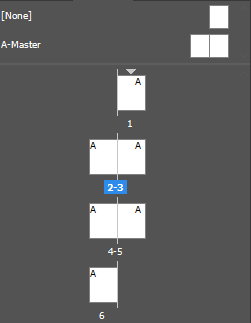 Spreads starting on page 1
It is important to note that InDesign will start on page 1 by default. Odd pages are always the right side of the default two-page spread. If you want your book to start on the left side of a spread, right click on the first page of your Pages panel and click “Numbering & Section Options.” Set the page numbering to start at 2. When you click OK, you won’t have an odd right-page starting your book.
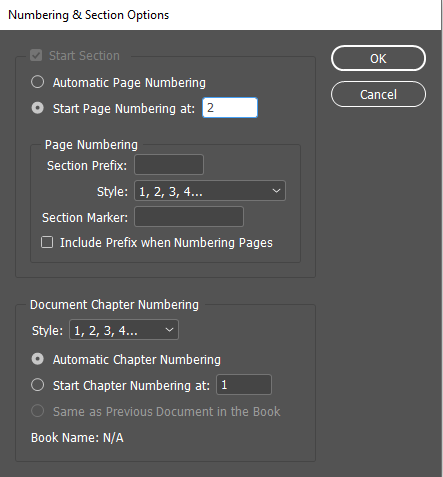 Page numbering
You can always change this back! InDesign keeps track of your pages as individual objects, regardless of what their number is. If you reset your book to start at page 1 later, whatever the first page is in your book will be re-labeled as 1.
Step 3a: Frame it up!
While we could just start adding text and images, we are going to go through two extra planning steps. First, add some frames to hold content. A typical children’s book has a simple pattern for text and images.
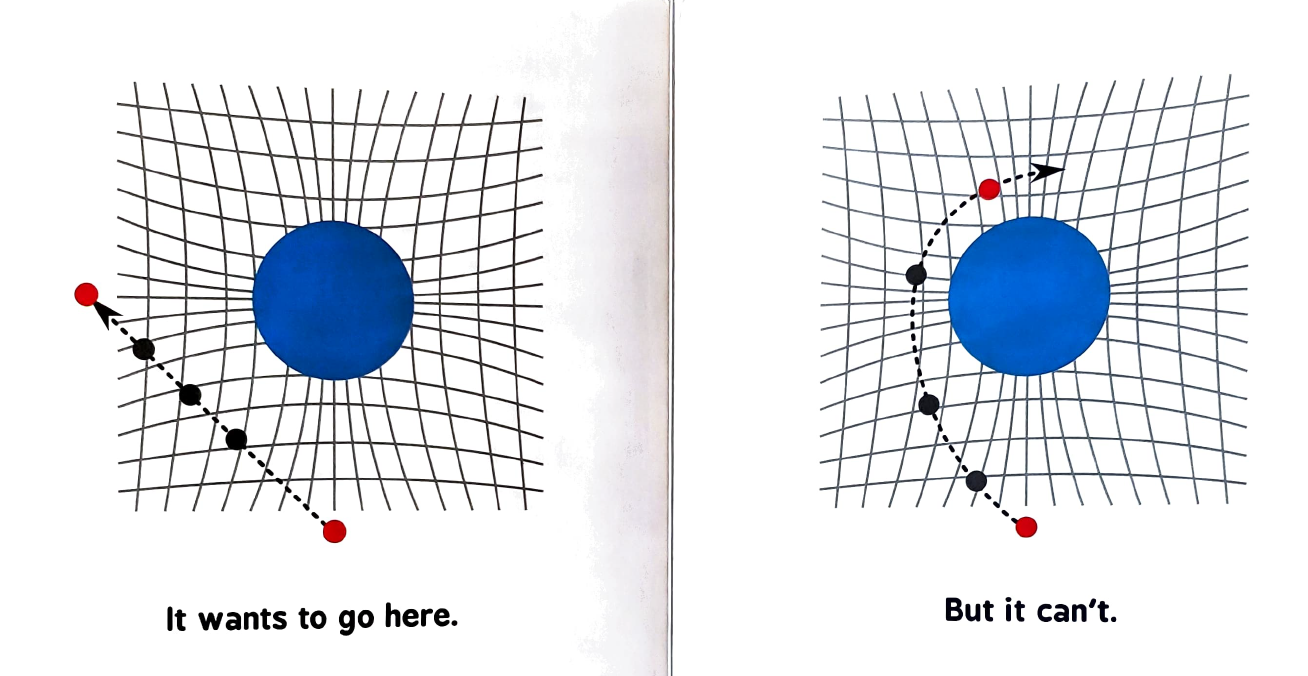 Two-page spread from General Relativity for Babies
So, start by working through your book and adding Content Frames (the ones with the X in them).
If you find yourself reusing the same pattern over and over, you might be interested in Step 3b…
Step 3b: Save State!
Work smarter! In professional publishing, layouts that are regularly repeated (think about magazine spreads, for example) are never crafted by hand each time. Instead, we use templates. So, let’s save one of those page spreads you’ve made as a template.
Click and drag a page into the Master Page space to save it as a page template. If you want to save a two-page spread as a template, shift+click both pages, then drag them into the Master Page space.
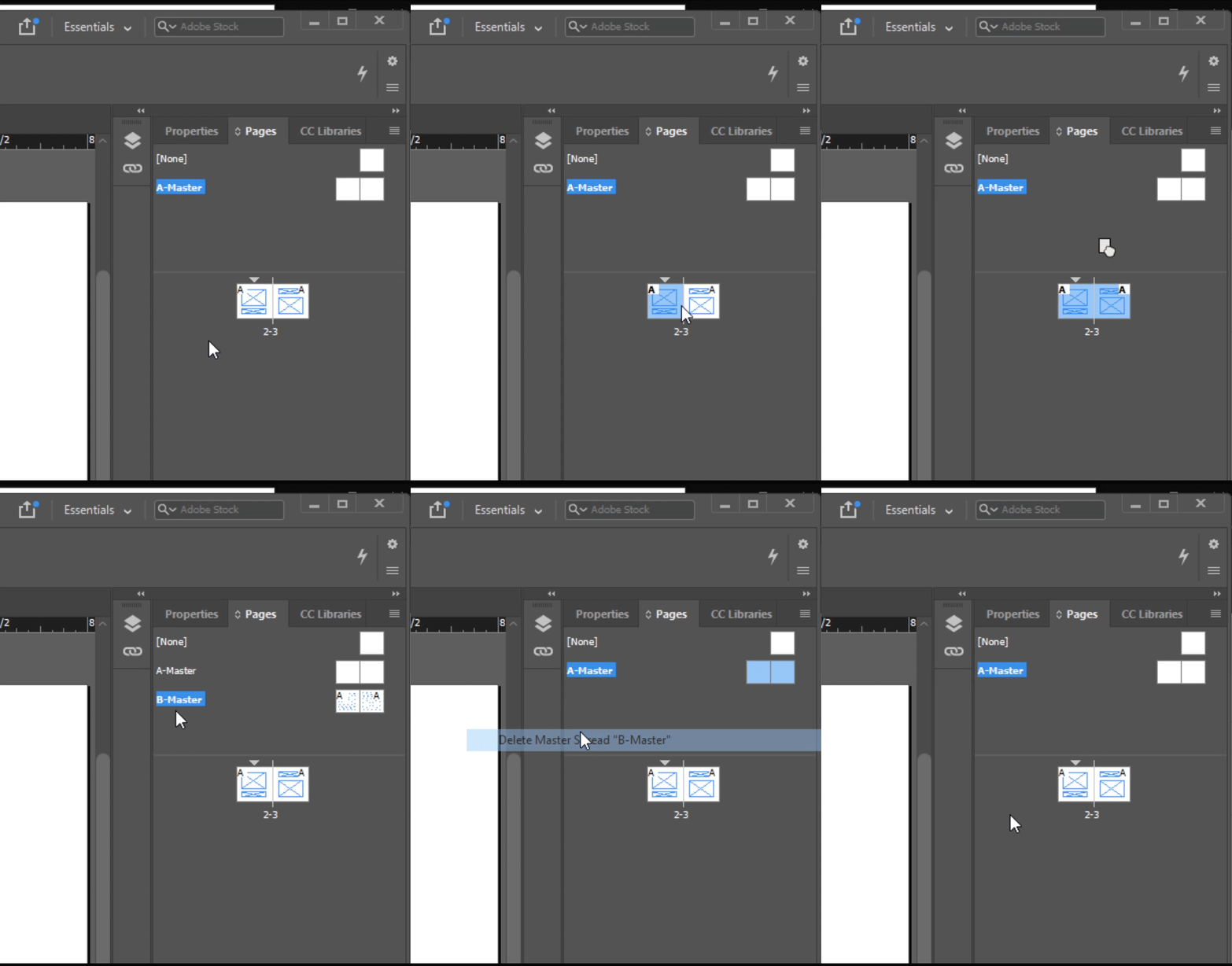 New template!
When you want to use a template, just drag it back down into the page space.
Step 4a: Add Content (text)
Now the fun part!
First, we’re going to add your text content. Notice that in my sample text linked in the materials, there are a lot of individual short paragraphs. I intend to break my book up with a new page at each paragraph break. Let’s start by linking our text content boxes.
First, if you’re copying stuff with Master Pages, you will need to make your content boxes editable: simple hold CTRL + SHIFT (CMD + SHIFT on Mac) and click a box to make it editable.
Next, we can link our text boxes (so that text that overflows the space in one box automatically moves on to the next) by setting our first content box to hold Text. Right click the content box, then look for the Content option > select Text.
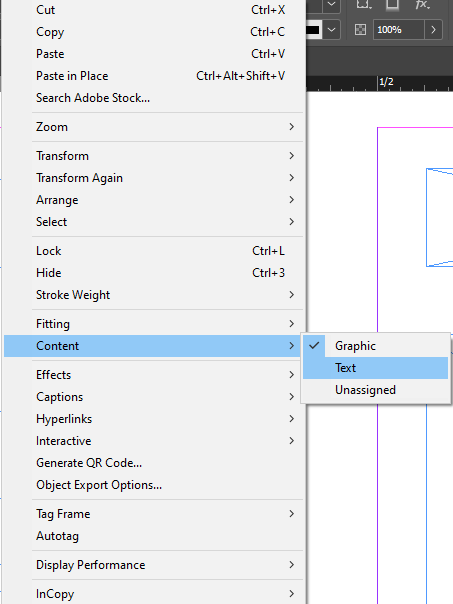 Setting a content area to hold something specific
Now, when you click this box, you’ll see a new set of bounder-style icons around it.
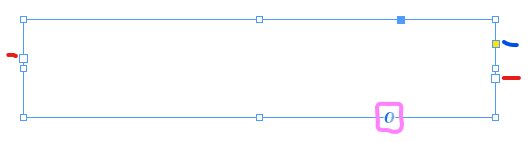
The larger squares marked with red lines are your linking boxes.
- Click the square on the right then click any other content box: this will tell any text that flows beyond the size of the box to automatically move to the next linked box.
- Click the square on the left then click any other content box: this will tell the box to accept overflow text from the second box you clicked.
The O marked in purple will open a font-settings box to change the appearance of the text inside your content box.
Clicking the yellow square marked with a blue line will let you put rounded corners on your content box.
Finally, copy and paste your text into the first content box. Your text should be threaded from one frame to another if you’ve already set up your links. If you have not, you can do that here (or manually copy/paste in each frame).
As a sidenote: Sometimes, when you’re threading text, you’ll want a break to occur at a specific point. While you could press Enter a bunch of times to force it to happen, that isn’t a great solution. (Like trying to do the same thing in Word, it makes revision a pain in the rear.) The better way to insert frame breaks is to put your cursor where you want the break to go, select the Type menu > Break Characters > Frame Break (or press Shift + Enter on the number pad). You can also use the Find/Change tool (CTRL + F) and replace any character, like the end of a paragraph, with a Frame Break.
Step 4b: Add Content (image)
Adding content to InDesign is a heckuva lot simpler than text.
- If you are not adding from your Creative Cloud library, click the frame you want to insert an image into, then click File > Place, then select the image file you want to import. Done!
- If you are adding from your Creative Cloud library, open the Library panel in InDesign, then drag your graphic from your library into the frame you want to use. Done!
You may need to resize your content once it is in place. Do this by clicking the frame with the graphic in it, then opening the Properties panel. Look for the Frame Fitting options.
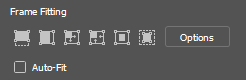
Each of these forces the image to size itself to fit the frame in a different way. The two options on the left tend to be the most useful: the first makes the content fill the frame horizontally (good for wide images); the second makes the content fill the frame vertically (good for tall images).
Step 5: Lather, Rinse…
Now, repeat these steps as necessary until your book is complete!
When you are done, use File > Export to create a PDF (Print) file like in our first lab. Submit the PDF and your *indd file to Canvas.
Grading
This lab is graded out of 6 points (remember that the course is graded out of 100 points).
- Completion 4
Turning in the *.indd file of your book and the *.pdf version is worth 4 points. Your book must have content on every page.
- Quality 1
Creating a high quality product (one that could go in a professional portfolio) is worth 1 point.
- Well-placed images and easy to read text are markers of quality here.
- Text should flow from page to page logically.
- Technique 1
Using advanced or very precise techniques in creating your lab product is worth 1 point.
- Threaded text is an advance technique that is worth practicing!
- Using Frame Breaks instead of the enter key to place text among frames is an advanced technique
- Having more than one kind of Master Page is a good habit to get into
