Lab Goal
Ok, since Character Animator is basically a no-go for most of us, this last lab will be a little more about graphics asset management in Premiere, using keyframes and other visual assets we’ve created so far.
At the end of the lab, you will have a short video that
- Uses Premiere’s built-in graphic creation system to highlight a document
- Uses Premiere’s built-in masking system to de-identify someone in the video
- Incorporates several assets from a graphic design program
- One background shape
- One stylized text
- One pointer
- One animated asset (an explosion)
Lab Materials
You are free to design as many of the graphic assets as you want to. However, I know that it’s Week 9. You all have stuff to do. Here are graphic assets you can borrow in a ZIP file (link). The file contains
- A 90’s inspired graphic background shape for text
- Stylized text as a separate graphic file
- A pointing finger
Lastly, the ZIP file has a short video.
Lab Procedure
Please add the video file to a new Premiere project. It is just a quick clip of me explaining the rhetorical triangle.
The following steps are all recommendations. Feel free to put your own artistic twist on any/all of them.
Pointing Things Out
In video creation and editing, you’ll often need to add graphics and move them around the screen. Sometimes, this is as simple as adding a text title beneath a speaker (e.g. “John Jones, Restaurant Owner”). Other times, you’re annotating visuals on a screen (e.g. highlighting key portions of a document). In professional filmmaking and animation, you might be adding CGI elements to a scene.
All of these techniques come from the same skillset, so the two sections below will cover highlighting and adding a pointer to your sequence.
Highlighting
Highlighting is pretty basic and a great technique to get a handle on. It’s also done entirely within Premiere.
First, use your timeline to navigate to the frame where you want your highlighting to start. Then, head to the graphics menu at the top, Add New Layer > Rectangle. You’ll get a grey rectangle in the center of your video preview.
Click that rectangle’s layer in your sequence, then look in the Effects Controls panel (top left of your screen, if you’re using the default workspace layout). Rather than move the rectangle around with your mouse, I want you to practice manipulating it with the numerical information in the Effects Controls.
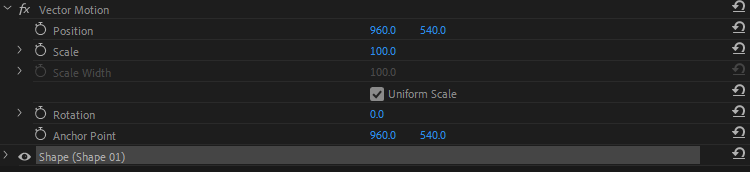
First, change the Position of the rectangle — the left number is left/right, the right number is up/down. If you click a number and drag your mouse to the left or right, that will increase or decrease the number, respectively. Get the center of your rectangle near where you want the center of your highlighting to be.
Next, we’re going to change the color. Expand the “Shape” part of your Effects Controls. You want to change the “Fill” color by clicking on it. You can use the color picker to find the color you want, or you can enter the numerical value of it in the boxes on the screen.
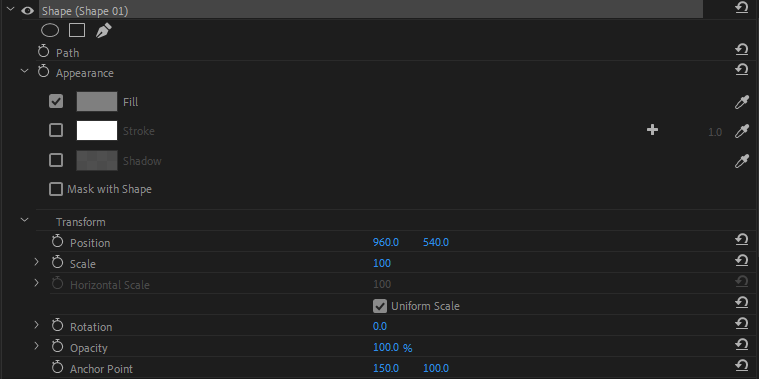
Stroke, like in our other programs, controls the outline of the shape. Shadow will create a box-shadow effect in any direction you choose. For highlighting, you only need to change the Fill.
Uh oh! This is a giant box, and changing the Scale probably isn’t letting you adjust its height or width independently. Expand the Scale property on this window, then uncheck “Uniform Scale.” You will be able to adjust the height and width of this shape independently.

Finally, you will need to make the box somewhat see-through (or, in technical terms, less opaque). Adjust the Opacity setting until you get what you’re looking for.

To add an animated highlight effect, you will need to use keyframes (click the stopwatch icon). The best way to get the effect is to start the horizontal scale at 0, then ramp up to your desired width.
(Tip: If you find that your highlighting is expanding from the center, look for the Anchor Point property. This is the “center” of the object for all animations. It’s what the Scale property expands from/contracts to, and it’s what the rotate property pivots around. You may need to change its location to get the highlighting to originate at the right point.)
A Bit More Literal
In the assets linked above, you’ve got a pointing finger icon. Add it to your project, then use Keyframes and the Position property to make it fly in from the side of the screen, point at something, then fly off the screen.
If you’re feeling adventurous, you can set a lot of keyframes and use other properties like Rotation and Scale to make it fly around the screen in more interesting ways. I’m not encouraging you to make Flappy Bird, but I’ve certainly tried to do it before. It’s a good way to practice movement in Premiere and find the limitations of this technique.
Title Cards, Name Cards
Title and name card graphics are a common need in any video project. They’re fairly simple to make, especially if you craft them in a program like Illustrator, Photoshop or (for a long Star Wars crawl) InDesign. The text tool in Premiere is handy, but it’s extremely limited. (Full disclosure: I use it because it gets text on the screen fast, but you really can’t get much more complicated than text inside a square frame.)
Your assets file has two components of a name card: “excitement.png” and “rhetorical.png.” Please implement them at an appropriate location.
For a little more interesting effect, use the Scale property and keyframes: you can make a visual appear to “bounce” by increasing and decreasing its size several times in a few seconds.
He Didn’t Sign a Release
If you’re filming in public, sometimes you’ll catch a shot of a human’s face. Humans don’t like that, especially when they haven’t consented to it. So, we need a technique for hiding human faces or any other visual elements we don’t want on our video.
So, let’s make the weirdo in this rhetorical triangle video anonymous.
In the Effects panel, head to Video Effects > Blur & Sharpen > Gaussian Blur. Drag Gaussian Blur onto the video track.

You can turn up the blurriness here, but that will affect the entire video. That’s not what we want.
Instead, click that pen tool. It works like the pen in Illustrator, Photoshop and InDesign — you click to add points on a line, and click + drag to make curved lines. You can create any shape you need to with this tool. Click to add 6-8 points around my head in a rough circle. When you click back to the starting point, you’ll get something like this:
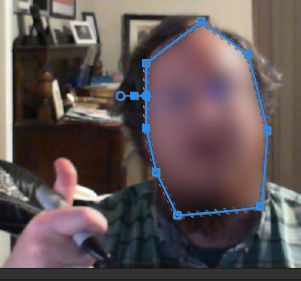
If yours is not blurry to begin with, adjust the Blurriness of your Gaussian Blur upward.
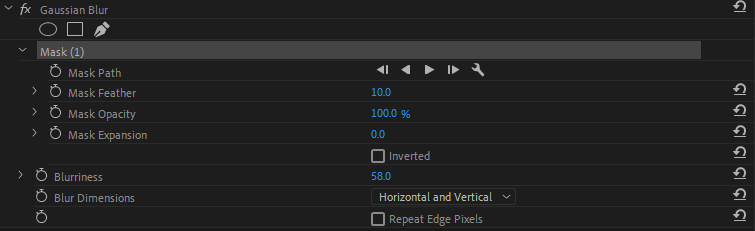
The Mask refers to the new layer you created with your pen — there’s a shape on the screen that doesn’t have colors or outlines on it; it’s just a blur. Notice that the Mask Path and other properties can be keyframed. I don’t move my head very much, but you can move the points of your mask or the whole mask itself in the same way that you’d adjust any other effect with keyframes.
I didn’t sign a release form for this video, so please blur my face.
That’s No Rhetorical Triangle… That’s a Window to Another Universe!
Headnote: If you want to get rid of your mask for any reason, simply right click on Mask (1) in your Effects Controls press the Delete key.
This is more of a bonus step than anything, but maybe you’ll be interested. This is not required for the lab points. It takes some time to do, which is why I’m not going to require it — if you got through He Didn’t Sign a Release above and it’s after 4:30, I wouldn’t recommend starting this during our lab slot.
If you want to make a “haunted mirror” effect (this video explains the whole process, including filming) or if you want to crop parts out of your video in a similar fashion to what we did to the Cool Teen and the Astronaut in our Photoshop Lab, this is the process to do so.
First, you need a second video or a cool graphic to be your “alternate universe.” I’ll let you decide what to grab for that.
Next, you’ll need to find the part of the clip that’s best for this purpose. I purposefully wrote the rhetorical triangle stuff on a square piece of paper and used simple movements for this, but you could totally use the window behind me as well.
Now, we need to use the Mask tool under the video properties. They look like a circle, a square and a pen.
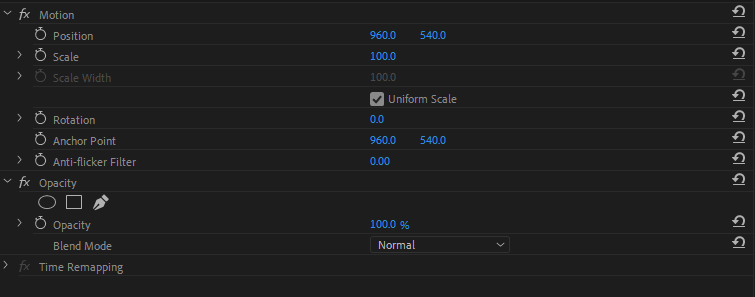
Each shape does the same thing; they’re just different shapes. I’m going to recommend using the pen to draw your mask. Use the pen to click each corner of the space where you want to draw a mask (click and drag to make a curved line, like in Illustrator or Photoshop).
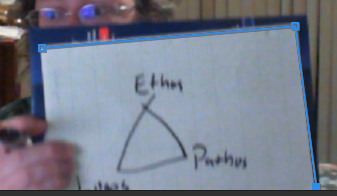
When you complete your shape, the middle will be visible and the rest of the screen will be masked.
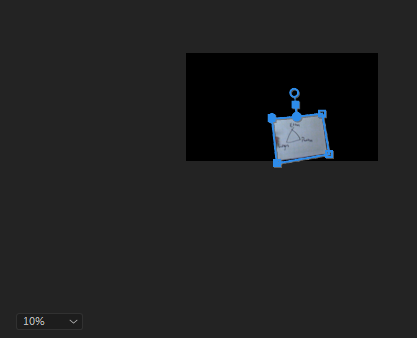
In the screenshot above, I changed the preview video size to 10% to make it easier to select all of the paper.
Once you create a mask, you will have new options in your Effects Controls, including an “Inverted” checkbox, which reverses the mask (in this case, hiding the sheet of paper).
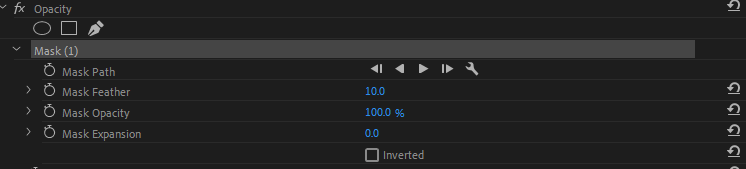
Note that you can add keyframes to the mask path (those points you just made) and the mask opacity. (Want to make a scary ghost effect? Use mask opacity!)
And, those keyframes are exactly what we need to do to get the mask to follow the paper or any other moving object. Now, if you are following an object that moves in a single, straight motion, you only need to add keyframes at the points where it starts, stops or changes direction or speed. Premiere will do the math to keep the effect lined up with your target.
Finally, once your mask moves like you want, you will need to add the window to another dimension. Simply place the graphic or video you want displayed underneath the video track you’ve added the mask to. Premiere will now look “through” your top track to the thing underneath it.
A Sidenote about Zoom Backgrounds
The Zoom background tool functions the same as this mask with one exception: it uses a chroma key to determine what the “background” is on a particular visual. You can do the same thing here without using a mask by heading into the Effects panel, then choosing Video Effects > Keying > Color Key or Ultra Key. The mask is a little more precise, but simply telling Premiere to hide one color is quicker, and it’s the thing that makes green-screening work.
Grading
This lab is graded out of 6 points (remember that the course is graded out of 100 points).
- Completion 6
Finishing the lab to its minimum expectations is worth all 6 points. All of these techniques are valuable to know, even if we are just using them for a few parlor tricks.
