Lab Goal
Oh man! We’re more than halfway through the term in a class about Adobe products and we haven’t even touched Photostop!
Well, that’s partly on purpose. Photoshop is really powerful, and it gets easier to use once we know a little bit about how Adobe products assume we are going to work with our files.
Lab Materials
This lab will ask you to modify two files. File A is what came up at Pexels.com when I searched for “cool teens.” Right click this image and download it.
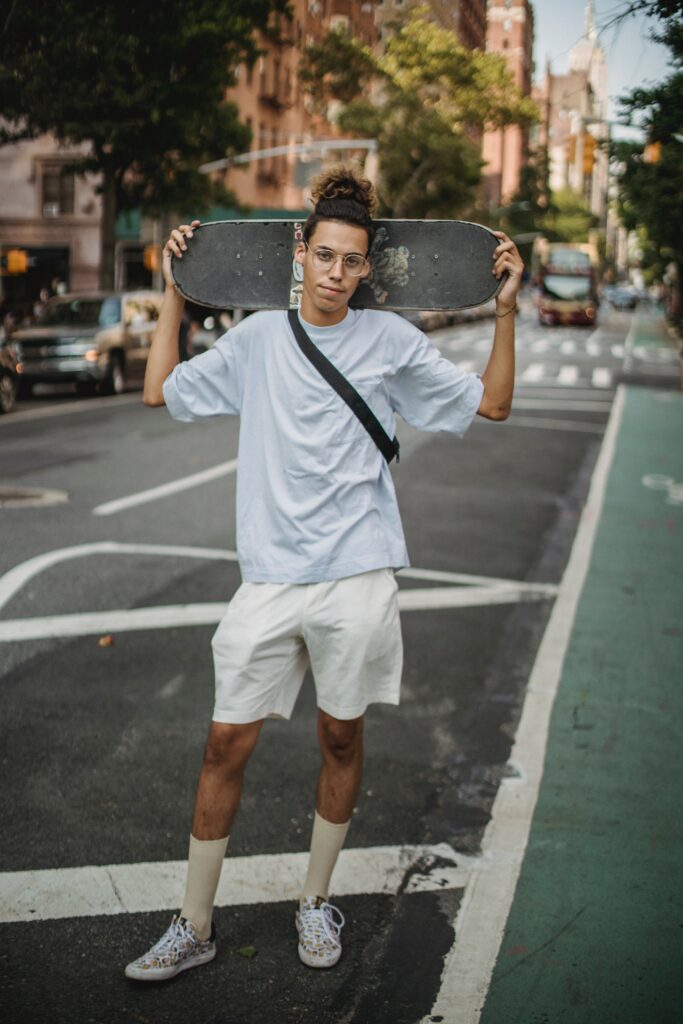
File B is a picture of astronaut Eugene Cernan, the last human to set foot on the moon, at the end of the 1972 Apollo 17 mission. Download this one, too.
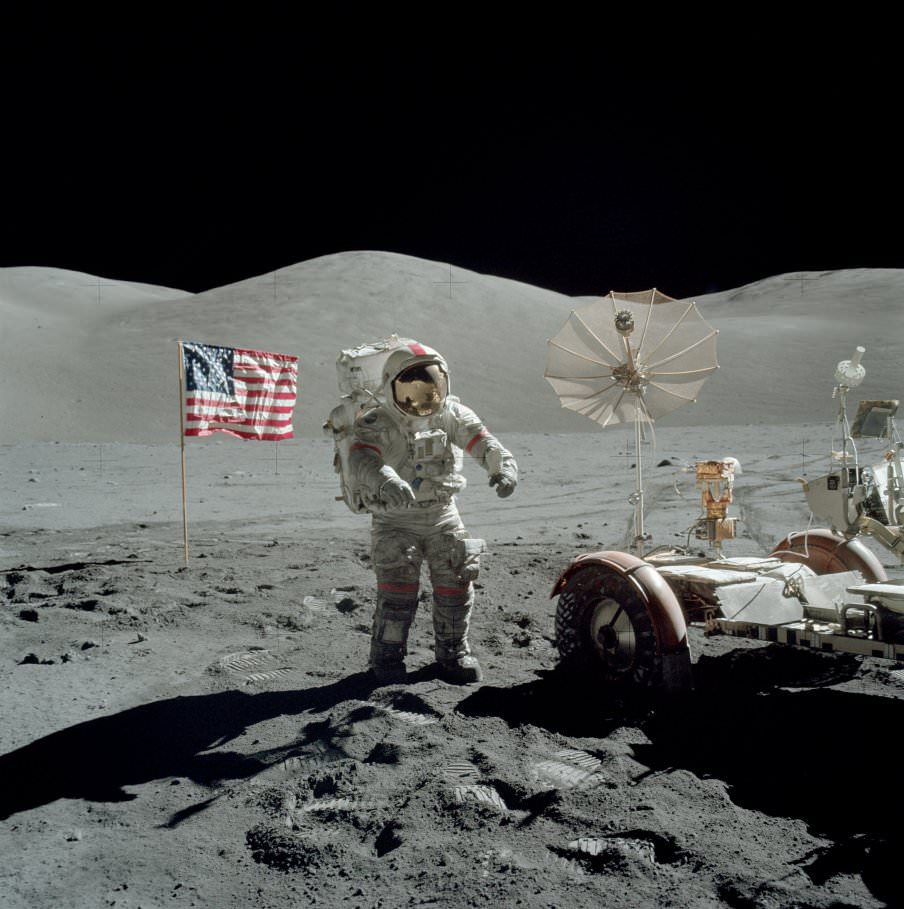
Next, open up Photoshop. We’re going to put the cool teen on the moon and “Gene” Cernan next to the bike lane.
Lab Procedure
The steps below will be for removing one person from an image, then filling in the background. Along the way, we’ll do some color balancing. I’ll leave it to you to figure out how to paste that person into the other image, then remove and place the person from the second image.
Step 1: Load Up Photoshop and Prep Your Space
It takes a little while to get ready. When it loads, select one of the downloaded images and open it. Then open the other. Finally, create a new Photoshop file, so you will have three open at once.
Our two images are 683px by 1024px and 904px by 909px. You are going to use this blank file to hold content that you are cutting and pasting. It’s safe to choose the largest of each dimension when making this new file—904 by 1024.
Step 2: Identify the subject
Select the image you want to start with. Then, we’ll begin selecting the person we need to remove.
Use the Quick Select tool  to begin. If you can’t find Quick Select, press the W key to activate your current selection tool. If you highlight a different tool, right click it to expand the menu and get Quick Select.
You should get a circle with a + in the center of it—this adds to your selection. Hold ALT to change the + to a – and remove from your selection (if your default selection is remove, ALT will flip it to add). Use the [ bracket ] keys to shrink and enlarge your selection space: left bracket [ shrinks, and right bracket ] enlarges.
Remember that you can zoom and pan by holding CTRL and pressing +/- (zoom in/out) or by holding spacebar then clicking and dragging (to pan).
Quick Select will select or de-select all similar colors around the + or -. It samples from the circle. A smaller selection space will get you more precision in selection.
Use Quick Select to select the entire figure you want to remove or to get as close as possible.
Step 3: Clean It Up
Quick Select will get you really far. If you’re having trouble getting the edges of a subject, hair, fine details or some other aspect of what you’re selecting, then you can use the Select and Mask button on the far right side of your selection toolbar.

Photoshop will create a temporary image with a bright overlay indicating what you’ve selected (it’s in normal color) and what isn’t selected (highlighted).
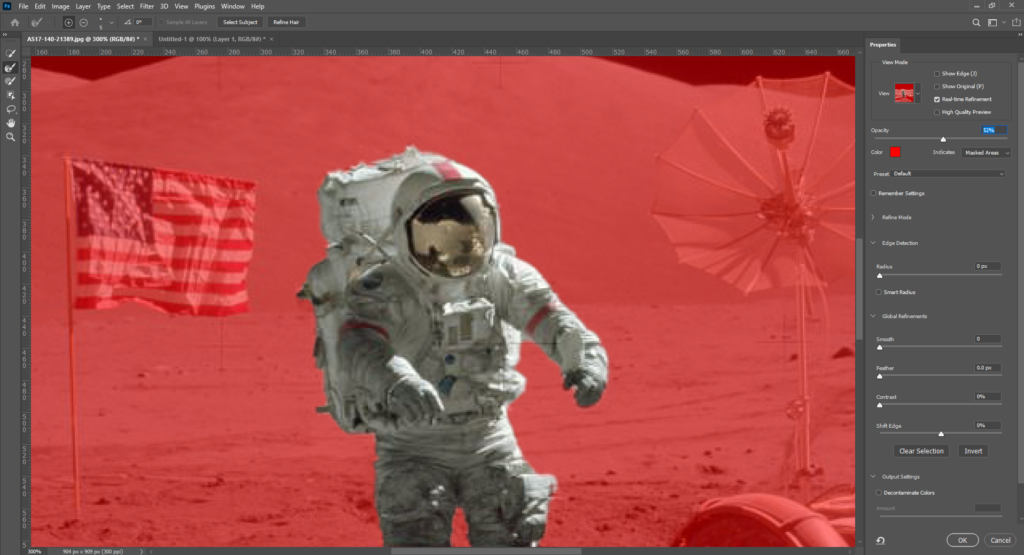
Use the Brush tool to add/remove selection (notice the + or – in the center of the circle). Use the Refine Edge Brush tool to add/remove selection according to the color under your +/-. Change the opacity of your highlighting in the panel on the right to make it easier to identify what’s outside the edges of your selection.
Step 4: Cut!
Once your subject is selected, head to the Edit menu and use Copy to put your selection on the clipboard. You can use Cut, but that will make the next step more difficult.
Paste your subject into that blank file you created, then head back to the one you’ve been selecting from. We need to clean the subject out of it.
Step 5: Leave no evidence!
When you get back to the image, your subject should still be selected. (If not, head back to Step 2.)
Now, we’re going to really cut this figure out of the image. (If you used Cut in the last step, you would get an empty, transparent block in the middle of the image, which your new subject isn’t likely to fill perfectly.) Head to Select > Modify > Expand to expand the selection area by some number of pixels. If your original selection got most or all of the subject, then 1-5 pixels should be plenty.
Then, head to Edit > Content Aware Fill. Photoshop will intelligently guess what was behind your subject based on the rest of the image. This works best when the area you’re filling in is a small part of the original image, as Content Aware Fill is essentially just an automated version of the Clone tool.
When you start it up, you’ll get something like the Select and Mask interface.
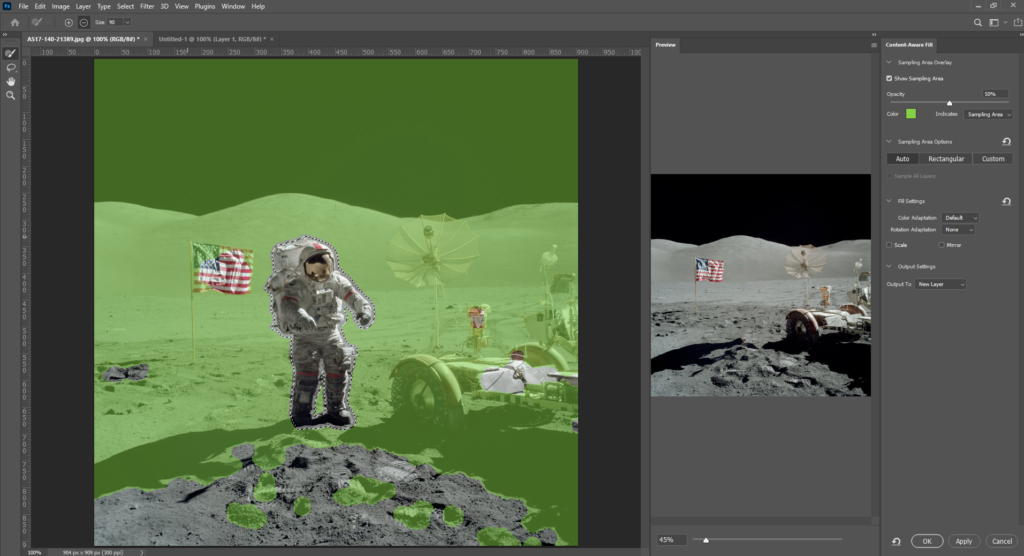
The highlighted area is what Photoshop is using as source material to fill in the un-highlighted area. In the example above, the astronaut is not highlighted, and he is completely removed in the preview image on the right. Like the Select and Mask tool, you can use the Sampling Brush here to add or remove (notice the + and – in your brush circle) sample content. Note that you cannot add or remove sampling area from within your selection at this stage.
If your original selection did not get the entire subject, a ghostly outline will remain, making your image look like a scene from Predator. If you selected too much when you expanded your selection, the filled area will be blurry. If you need to tweak your selection, click Cancel here and modify your selection, then come back to the Content Aware Fill.
Step 2b: Again!
You did it! You’ve removed one figure from one image, and you have that figure copied into a placeholder document. Now, remove the second figure and place them directly into their target image using the steps above.
Step 6: Sloppy Photoshop
Now, the final step to go through on each image is cleaning up the colors and any other artifacts showing that the images have been manipulated. I’m not expecting perfection here, but we’re going to try to avoid some common problems, like clearly mismatched colors and lighting.
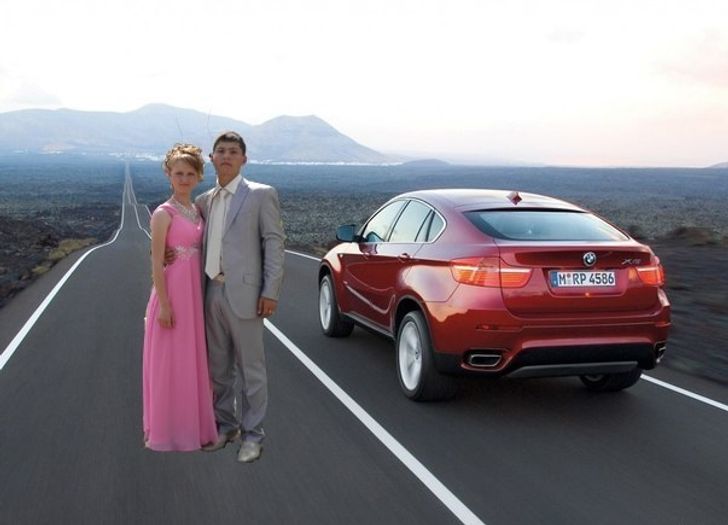
Before we get too far into this: other Adobe programs are really good at matching lighting and coloring. After Effects is probably the best tool to use for this. After Effects is also very memory intensive, is not available on the Virtual Desktop and would require a few more weeks in this class to address effectively. So, we’ll wing it with Photoshop.
Like with Premiere, we can do a lot of image-wide color work with just a few tools.
Save your image, then head to the Image menu > Adjustments > …
- Levels and Curves will let you tell Photoshop to modify the way certain colors appear in the image: levels will lighten/darken the whole image, while curves will let you lighten/darken specific color ranges.
- Exposure will let you make an image look over- or under-exposed. This can compensate for actual over- and under-exposure, but only so much. It can also wash out an image to offset color problems.
- Color Balance will either drive up or reduce the effect of different colors within the image (Cyan, Magenta and Yellow, the printer-ink colors).
- Posterize will reduce the number of active colors on the document: multiple red hues will be “averaged” into red. It will be obviously touched up, but it will also look cool.
- Selective Color will find the color ranges you select (like reds) and add/remove other colors from them.
There are other options in here to play with. For this lab, I’ll just ask you to play with them and see what they can do. If you have part of your image selected (like the subject you just pasted in place) and then you activate one of these tools, they will only affect what you have selected.
When you are all done, please upload your two manipulated files as *psd.
Closing Notes
If you read this far before starting, congrats! I’m going to let you in on a secret. If you check the Select menu, there are several options in the third group down:
- Color Range: Select everything in a group of colors. This is useful if you want to grab all of the red cars in a picture and turn them blue.
- Focus area: Photoshop will detect what your camera was focused on and select that.
- Subject or Sky: Exactly what it sounds like. Photoshop will select the thing that looks like the sky or that looks like the primary subject of a picture.
In this lab, you could have used Select > Subject to grab either person in one click. However, the Quick Select method is what that tool is built on, and it’s more useful in the long term to be able to select a thing on your own.
Grading
This lab is graded out of 6 points (remember that the course is graded out of 100 points).
- Completion 4
Finishing the lab to its minimum expectations is worth 4 points. You need to submit an image of an astronaut on the street and a cool teen on the moon.
- Quality 1
Creating a high quality product (one that could go in a professional portfolio) is worth 1 point. High quality work will have
- Minimal color conflict
- No remaining indicators of the old subject
- A clean content fill of the background
- Technique 1
Using advanced or very precise techniques in creating your lab product is worth 1 point. Good techniques to practice here are
- Level, Curve, Threshold or other image-level balancing
