Headnote: Travis and I ran into a problem with OpenGL (a 3d-rendering framework that Character Animator is built on) and Character Animator yesterday. The program will run, but you won’t be able to see what your character is doing during rigging or recording… which kind of makes using the program impossible.
I’ve written out the instructions for Character Animator on the assumption that we could use it. If it turns out that the OpenGL problem still exists when we get into lab today, I’m not entirely sure what Plan B is going to be. I have an idea, but I don’t have the time to write it out now.
Lab Goal
Our goal today will be creating a “simple” animated video using either our own character models or a stock model from Adobe.
Lab Materials
Sound
You will need a music or sound clip of at least 30 seconds. If you are using Character Animator on the virtual desktop, the best way to do this is to put a music or sound file into your OneDrive, then copy it to your Character Animator project from there.
- You could use a chunk of an audio book from the Libri Vox free book collection
- You could use a song from the FM Radio Archive
If you end up with an audio file that’s much longer than you want to use, you can always trim it first in Premiere!
Image
Next, you will need either your Adobe Illustrator puppet from several weeks ago or you will need a puppet from one of the collections below.
- Here is Adobe’s collection of free to use puppets
- Here is OkaySamurai’s collection from a few weeks ago
- You can also use any of the puppets available on the home screen of Character Animator (like Red Monster or the unicorn)
- If you have a character but you need more mouths, GraphicMama has a great free collection here
For best results, your puppet should follow certain naming conventions. In Illustrator, your layers need to be grouped together in the pattern below. In Photoshop, you can create Layer Groups (basically a “folder” of layers) with the same naming pattern. If you don’t want to do this today, I recommend using one of the sample puppets. If your character doesn’t have these body parts (e.g. Red Monster has no body), you can omit them. If your character has more than these (e.g. an alien with three eyes), simply add more layers. The naming conventions just help Character Animator figure out what the model’s structure is — you can get by without the names, but it’s more challenging.
- Character Name
- Head
- Mouth
- Neutral
- Surprised
- Smile
- Uh
- Ah
- Ee
- D
- S
- F
- M
- L
- Wo-o
- Oh
- R
- Right Eye
- Right Eyelid
- Right Blink
- Right Eyeball
- Right Pupil
- Left Eye
- Left Eyelid
- Left Blink
- Left Eyeball
- Left Pupil
- Mouth
- Body
- Torso
- Right Leg
- Left Leg
- Right Arm
- Right Arm
- Right Hand
- Left Arm
- Left Arm
- Left Hand
- Torso
- Head
Protip!
Remember Blank from week 2? He was a Character Animator puppet. You can find him on the free Adobe sample link above. He already has this structure attached to him, so you could always redownload him and replace his layers with the ones you made for your own character model.
Lab Procedure
First, create a new project. From the home screen, just use the “Create New” button and give it any name you want. If you are working on the virtual desktop or a lab computer, save this file in OneDrive! Then, if you haven’t already, make sure you’ve logged in to OneDrive on this computer.
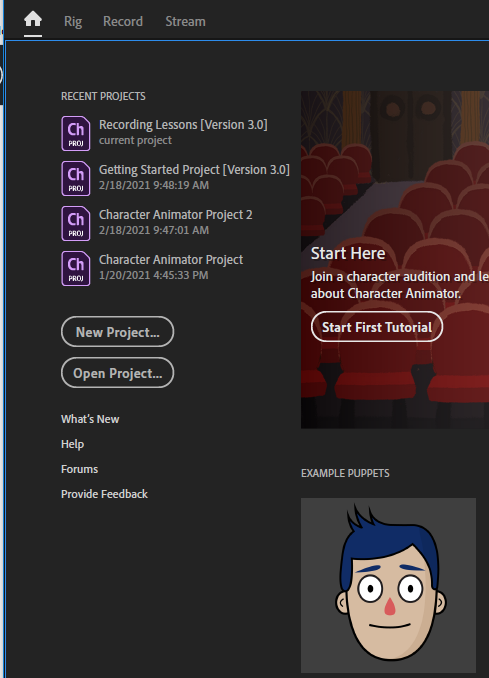
By default, you will start on the Record screen. If you don’t already have a character or scene created, head to File > Import and import your character model file and your sound file. If your character model is in Illustrator or Photoshop format currently, it will take Character Animator a minute to convert it.
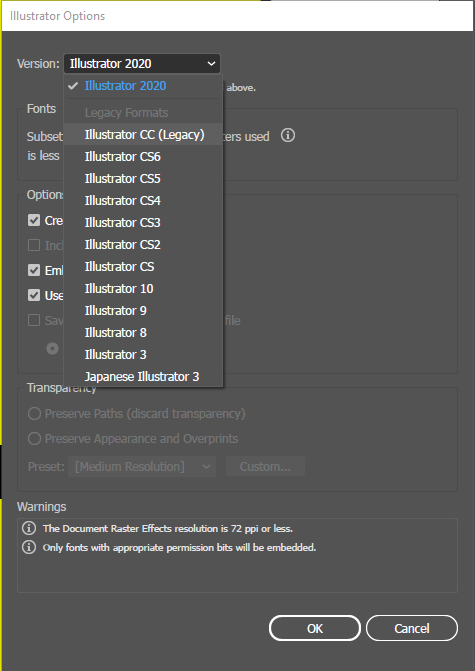
Sidenote! If you are using the newest version of Illustrator to make your puppets, it can sometimes create a file that’s unreadable by Character Animator. If this happens, open your puppet in Illustrator, then use File > Save As. You will be prompted to choose what compatibility version you want to use — Adobe CC Legacy is compatible with Character Animator.
Finally, as an option, you can always import a background image as well. This process is exactly the same as importing a character model — just use File > Import and find the image file you want to use, including files still in Photoshop or Illustrator format.
Rigging
Before we can animate, we need to rig our puppets. Think of it like a marionette puppet: we have the doll created, and now we need to attach the strings so it knows how to behave.
Double click your puppet in the Project panel to get to the Rig panel.
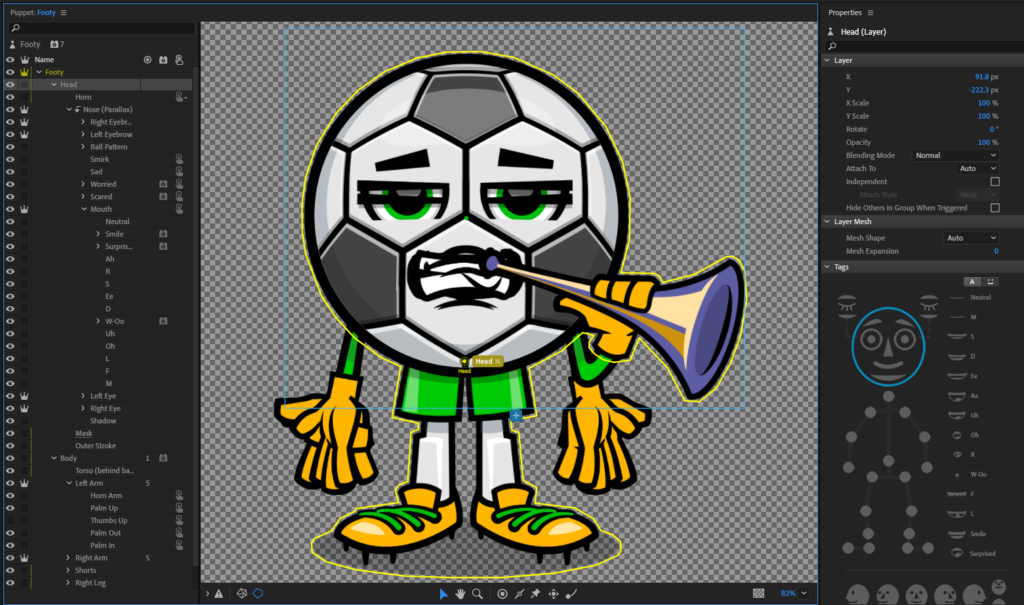
The left side of the panel has all of your layers — like in other programs, the eyeball icon means it’s visible. The crown icon (if you have any) means that this part of the body moves independent of others. Eye pupils, for instance, should move independently of the head. This crown makes more sense as you manipulate puppets more.
The center of the panel is your character model. This is where you will add handles.
The right of the panel is the properties area, which will tell you what behaviors and traits are attached to specific parts of the character body.
If you’re using a pre-built puppet, these things are likely already set up for you, so you can skip the next section.
Adding Handles
We’ll add three basic handle types to get started. This is all of the logic you need to rig up a really good puppet. As you work through this process, remember that no change here is permanent. You can delete handles or behaviors without changing the base puppet. You can move handles or other objects around and re-rig as often as you need to.
Anchor Points
As we get into this, it will be important to keep an eye out for “anchors” on your character’s body. If we look at Blank’s head, he has a small circle labeled “head” at the bottom of his face.
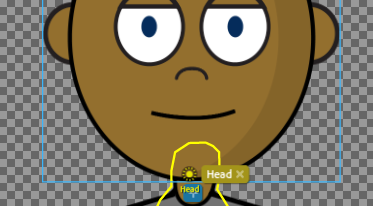
This is where his head will pivot if it moves around — this is the anchor point dictating where the rest of the layer should warp from. You can see that his right arm’s anchor is at the shoulder.
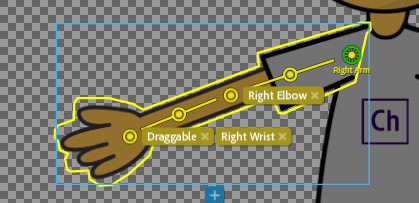
If you’re thinking about this from an anatomical perspective, the anchor is where one part of the body connects to another part. By default, anchors are usually in the center of the layer. Just click and drag them up to the “connection” point to set them more realistically.
Hold Here
First, let’s add a dragger handle. This is the part of a puppet you can click on to drag around the screen.
Click the character’s right hand layer. The layer must be active for this to work (otherwise the dragger will get attached to something you don’t intend). Next, look at the bottom of the Rig panel for a tool that looks like a circle inside another circle.
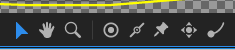
Click that to activate the tool, then place it on the character’s wrist. You’ll get a little circle icon with a + next to it.

Press V to turn on your “Selector” tool (like the black arrow/white arrow tools in previous programs) and click the circle. Then, look on the properties list for the “Draggable” modifier. Click it to turn it on.
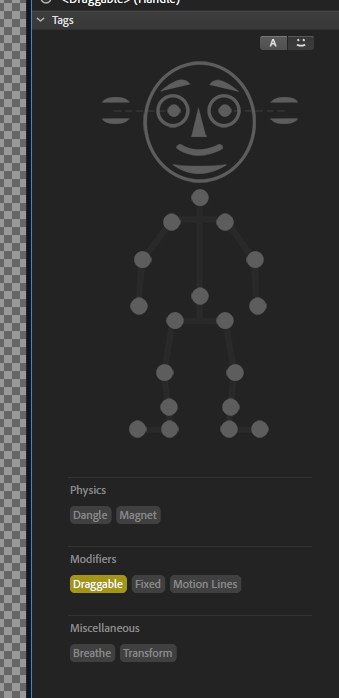
If you click back onto the Record panel, you should now be able to click and drag your character’s hand around. Cool!
Bones and Rigidity
But, dragging your character’s hand might be dragging their whole body. Not cool!
We need to give this person some bones. We do this with the “Stick” tool, which looks like a line through a circle on your Rigging panel.

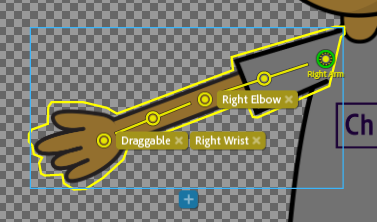
Let’s add three sticks to this person. The first two are going into the right arm layer, and they should correspond with your humerus and radius, with some gap in between them. The example below also has a dragger handle at the elbow (recommended), which has been tagged as the “right elbow” in the properties list. That’s not required, but it does help with kinematics (the IK tool), which we won’t get into right now.
Next, we need to stop the character from flying around the screen when we drag them around. We do this with a stick across the hips or down at the feet.
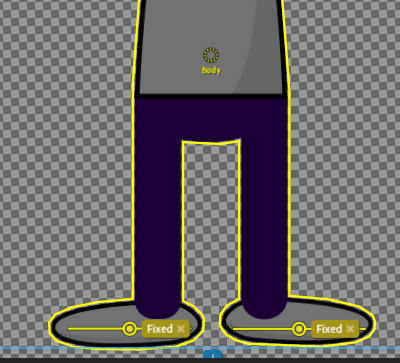
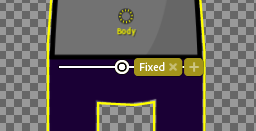
You only need to choose one fixed location! You will get slightly different behaviors depending on where you fix your character. If Blank’s feet were fixed, he could move his waist and upper legs to do a half-moon yoga pose.

If his waist was fixed, he wouldn’t be able to move that part of his body.
Dangles
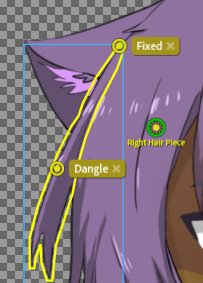
Finally, sometimes you want an object or part of your puppet to sway or dangle when the puppet moves or if you add a wind effect. For instance, if I had hair on Blank, I could set it up to wave whenever he moved his head around.
Any dangling layer has two parts: the anchor and the end. The anchor is your anchor point (see above). The end is the place you should imagine the “dangling force” acting on the layer. That’s where you add the Dangle Handle.
Triggers and Swap Sets
You might notice that Blank (and other puppets) have multiple layers for the same body part, often several hands. Alternatively, puppets like Red Monster have layers that aren’t meant to always be visible, such as a lightbulb over the head of fire breath. These are manipulated through triggers and swap sets.
You can add these in the Rig panel. Select the layer or layers you want to manipulate, then right click and choose Create Trigger if you want them to appear/disappear on a keystroke (Red Monster’s lightbulb), or choose Create Swap Set if you have a grouped set of layers that you want to cycle through (Blank’s hands).
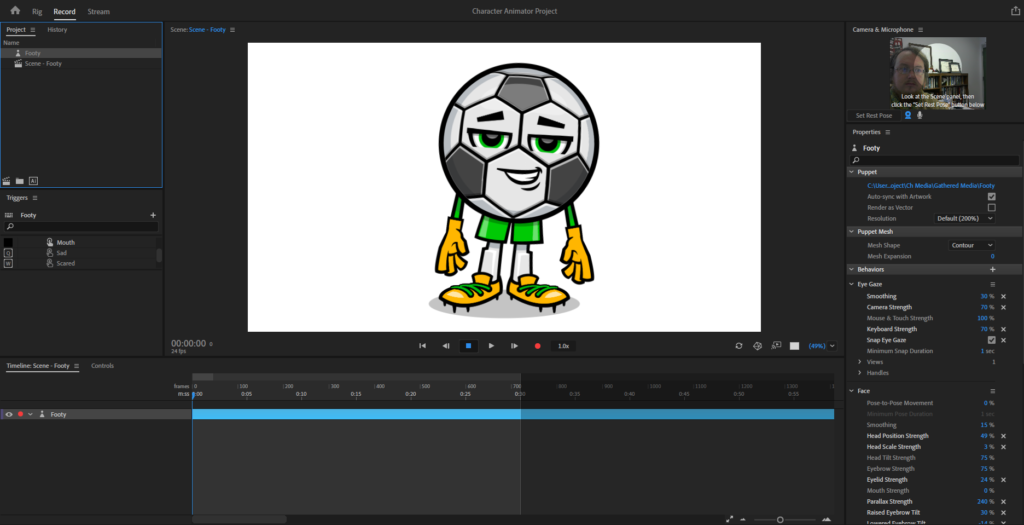
You’ll notice the Trigger panel is then populated with the layers you selected. If you are using a pre-built character, these may already be filled in, as with Footy below:
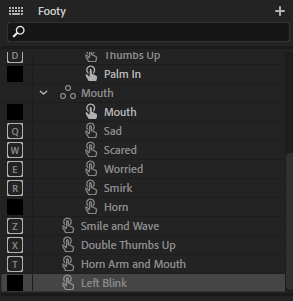
The box on the left is the keystroke that triggers the layer. If you want to change it, click the box and type whatever button you want to use to trigger it. On the Record panel, press the button to see what happens!
Recording
Alright! We’re ready for the fun part. Head to the Record panel. Make sure you know where all of your Dragger Handles are (if you are using a pre-made puppet, look for them in the Rig panel).
Broad Steps
First, we need to make a pass for audio recording. If you are using a pre-recorded sound file, go ahead and add that to your project, then add it to your timeline. Click the Timeline menu > Compute Lip Sync from Recorded Audio. Give Character Animator a few minutes to figure things out.
Next, we need to give the character some movement. Move the head to the beginning of your timeline, find a dragger handle you want to manipulate, then press Record and move the handle as you see fit during the performance. Repeat this process with the other handles you have available.
Remember that each time you record, Character Animator saves all new movements and inputs as part of the sequence.
If your character has behaviors, you can record those along the way as well.
Fine Detail
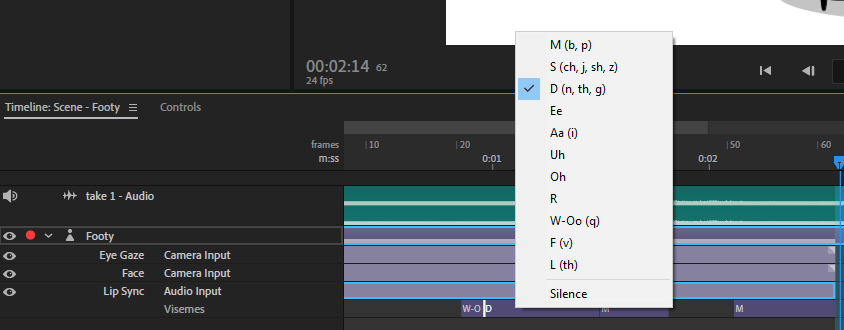
The time consuming part of animation is getting all of the little things right. In our case, this means lining up the visemes with the actual sounds of the audio track.
As you are watching and listening, if a viseme seems out of sync, you can left click on it and delete it to remove it entirely (typically nearby visemes will expand to fill the empty space) or you can right click on it to change it to another sound.
Wrapping It Up
When you feel pretty happy with your animation, there are several ways to save it, all under the File > Export menu.
- Video via Media Encoder (and Video with Alpha): Exports your animation as its own video. “Alpha” is the transparent background that your character is standing on. This will open the Media Encoder program, just the same as if you used the Queue option in Premiere. This is the export you should use when you want to post something immediately to YouTube or some other tool.
- PNG Sequence and WAV: Exports your animation as a series of image frames and a high-quality sound file. This is the export you should use if you want to do additional post-processing in Photoshop (with each PNG being a single layer of your animation) or After Effects.
- Adobe Dynamic Link: “Exports” a link to your animation file for use in Premiere or After Effects, or to link your audio directly to a program like Adobe Audition (like Audacity). This keeps the link active, so you can re-record or adjust anything in Character Animator and have that immediately reflected in your video editor. This is more memory intensive, and it’s the right export to use when you need to actively edit your animation to fit other video constraints.
Please export your file via media encoder. Encode it as an mp4 in H.263 format. If your file size is over 20mb, please save it into OneDrive and submit this assignment as a OneDrive link.
Grading
This lab is graded out of 6 points (remember that the course is graded out of 100 points).
- Completion 4
Finishing the lab to its minimum expectations is worth 4 points.
- Quality 1
Creating a high quality product (one that could go in a professional portfolio) is worth 1 point.
- Technique 1
Using advanced or very precise techniques in creating your lab product is worth 1 point.
