Warning: Undefined array key "char" in /home/fryespo1/com248.fryespot.com/wp-content/themes/fryeclass/class_post_functions.php on line 64
Warning: Undefined array key "char" in /home/fryespo1/com248.fryespot.com/wp-content/themes/fryeclass/class_post_functions.php on line 68
Lab Goal
We’re going to take our first walk into Creative Cloud software today. The general goal is to get used to the interface and some basic assumptions of these programs using InDesign.
If you are unable to access the virtual desktop or InDesign inside the virtual desktop, please skip to the PowerPoint Alternative below.
EDIT: If you would like a run through of how you could approach the lab activity, please see the YouTube video below. It’s about 30 minutes, and I was told after I finished that the last bit about recoloring Aardy the Aardvark wasn’t on the InDesign screen like I thought. (Luckily, that bit was extra.)
Lab Materials
You will need access to Adobe InDesign. If you don’t have a Creative Cloud account, you can get there through the OIT virtual desktop tile on TechWeb.
You will also need one of the client info pages below to get information from.
- Client 1: Sammy’s Sammich Shoppe
- Client 2: Aanarchists for Aardvarks
- Client 3: Northwest Consolidated School District
Lab Procedure
- Read all three client pages. Pick the one you want to work for.
- Open InDesign. Wait a bit. It can take a few minutes to launch.
- You’ll get a screen like this
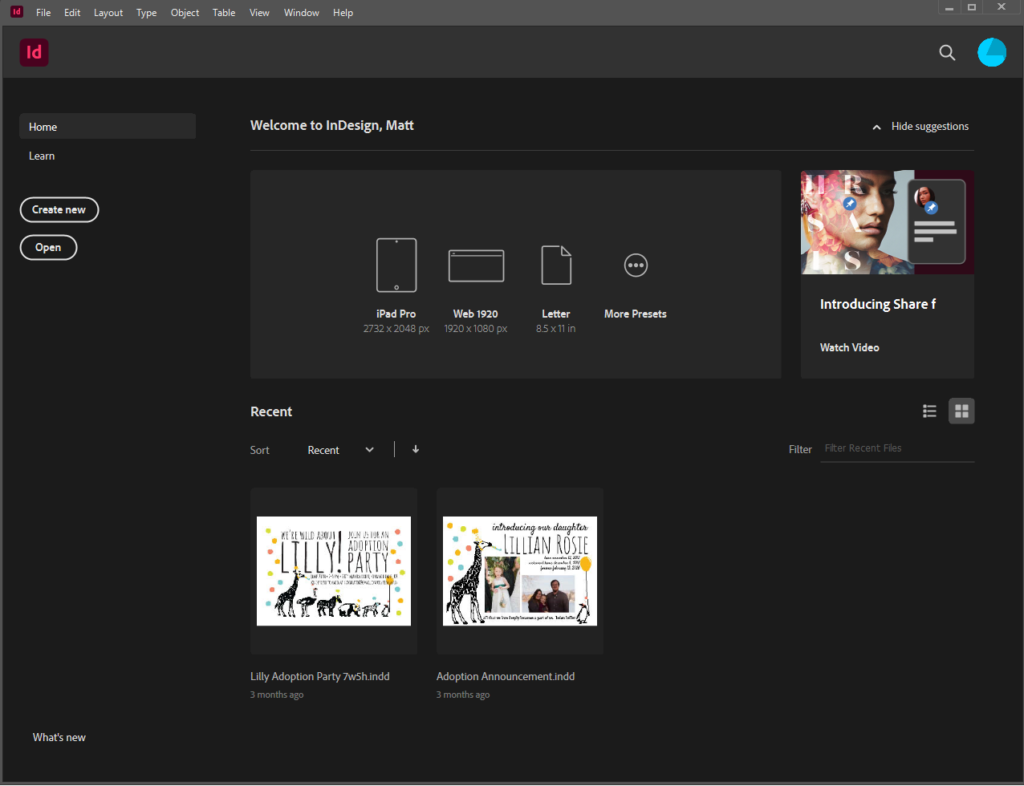 Click me to expand
- Click “Create New” and you’ll get a screen like this
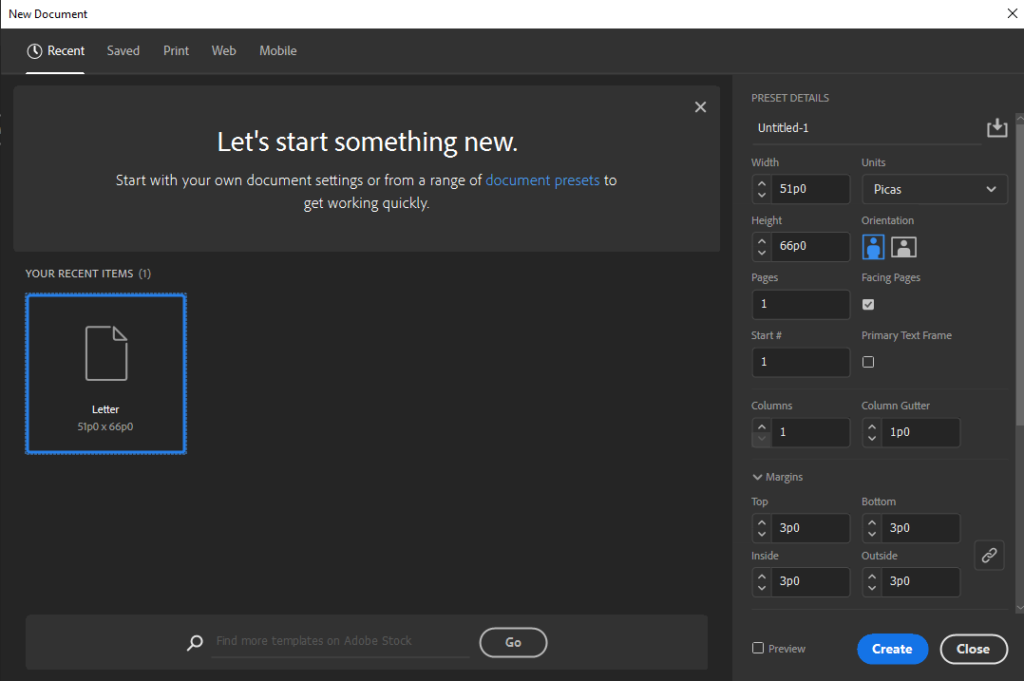 New Document Screen
- I recommend changing your units to “pixels.” Picas tends to be the default. It is a very useful measurement unit if you go into print document design, but not very useful when you’re learning this program.
- By default, you should have an 8.5×11 document, which comes out to 612px wide and 792px tall. Make sure those are your settings.
- You want one page.
- Do not worry about setting the margins, bleed or slug right now.
- Margins are exactly what they are in Microsoft Word: the space around the edge of your document. Setting them to any number will create some magenta guidelines on your document. These lines do not print, and you aren’t forced to stay inside of them. They are just guides while you’re working.
- The bleed is like the opposite of a margin: it is extra printing beyond the edge of a page. If you’ve ever bought a board game and punched cardboard pieces out, you’ve seen a bleed in action. The bleed is typically a few millimeters larger than your print area, so your printer (the human, not the machine) can cut out your document without leaving white margin.
- The slug is an amount of page space outside the bleed that is dedicated to printer’s notes or instructions. Again, not useful for us right now.
- When you’re ready, click “Create.” You’ll get this screen or something like it. If you want your screen to look like mine in our examples, click the Window menu > Workspace > [Essentials].
- All Adobe CC programs come with a variety of interface layouts, called Workspaces. You can create your own custom workspaces if you want, but the pre-sets often cover the bases you need. If you can’t find a tool and you know it exists, try playing around with your workspaces. If you ever move a panel into a place you don’t like or turn off a panel you really need, just reactivate your chosen workspace.
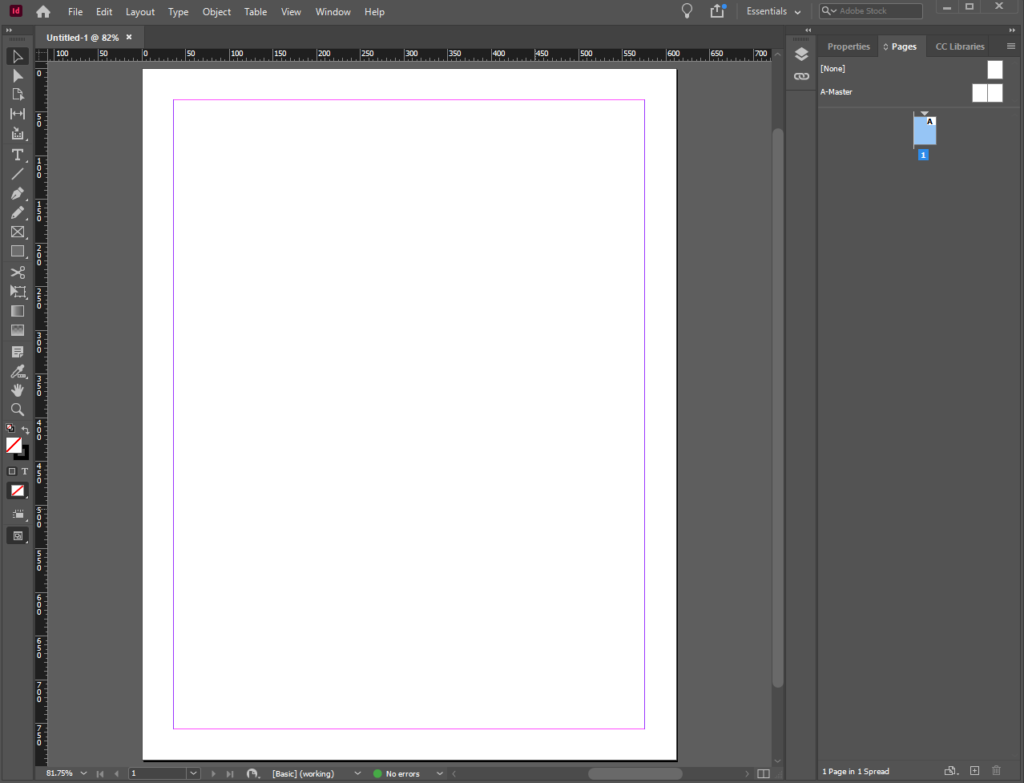 The InDesign Editor Screen
- Finally, using the techniques discussed in our InDesign how-to materials, create an 8.5×11 flyer with your client’s information. Your flyer should include the following:
- The event details
- The organizer contact information
- At least two background colors
- Readable font on top of the background colors
- The sample image
- When you are done, export your work as a PDF (Print) and upload it to Canvas along with the .indd file you created.
PowerPoint Alternative
PowerPoint isn’t ideal for this task (it really isn’t designed to output to a printed page or an ebook page in the same way InDesign is), but then, there aren’t a whole lot of good document design alternatives to InDesign in the same way that Photoshop has Photopea. (LucidPress is close, but it’s really just a souped-up Google Draw.)
As for accomplishing the main learning goals of this assignment, though, PowerPoint will get us there. In fact, academic and professional poster presentation materials are often designed in PowerPoint because that’s what people know. (If you’ve seen the giant 4′ x 3′ posters hanging in hallways on campus, that’s what they’re from.) If we’re going to use a non-ideal tool, let’s at least make the conventional bad decision &#x;
Page Setup
Launch PowerPoint and start a new blank presentation. Head to the Design tab and look for the Slide Size button to the right of your Themes and Variants selectors. Use Custom Size and enter our flyer size for the Slide Size: 8.5″ x 11″. Portrait or Landscape is up to you.
Rulers and Guides
InDesign and other Adobe Programs are made for very precise designs. PowerPoint less so. You can trick PowerPoint into giving you a few of those tools.
- You can turn on Grid Lines under the View, which makes it easier to tell how closely things are placed and what their alignment is
- You can turn on Rulers and Guides in the same place. PowerPoint will automatically give you one horizontal guide and one vertical guide, both running through the center of your slide. You can drag the guide as necessary to align elements, or you can right click the guide to add a new one and drag that one around
Shapes
InDesign uses frames to keep track of content and its location. PowerPoint does the same thing with shapes in the Insert menu. If you want to make a fancy, multi-color background, use the rectangle shape, then grab and drag the rotation icon that appears above it when you click on the shape.

Make the rectangle larger than your slide, and place it to create the color effect you’re after.
Flyer Design
Otherwise, just work through Step 10 above. Please submit both the pdf and pptx file.
Grading
This lab is graded out of 6 points (remember that the course is graded out of 100 points).
- Completion 4
Finishing the lab to its minimum expectations is worth 4 points. As a reminder, that includes
- The event details
- The organizer contact information
- At least two background colors
- Readable font on top of the background colors
- The sample image
- Quality 1
Creating a high quality product (one that could go in a professional portfolio) is worth 1 point. In this case, high quality would include
- Readable font
- A meaningful reading pattern on the page
- Visually interesting combinations of line and color
- Technique 1
Using advanced or very precise techniques in creating your lab product is worth 1 point. For this lab, that would include
- Complex shapes or shapes that have been manipulated in some way
- Guideline use
- Non-standard font selection
